

Dashboard & Notes is where every application lives after intake: a dashboard that shows status, reviewers, dates, fees and invoicing for all your files at once, a notes tab per application with attachments, edit history and the option to share selected notes with your client, an inspections tab, and automatic emails when a status changes or a milestone approaches.
How permit tracking gets done today
Most firms track permits in a spreadsheet, and most spreadsheets are wrong. Not because anyone is careless, but because the spreadsheet is separate from everything that changes the state of a permit.
- A row per application. Address, permit type, "status" as free text, a date submitted, a notes column that grows to the right.
- Updated by hand, after the fact. Someone phones the city on Tuesday and updates the sheet on Friday, or not at all.
- Fees and invoicing tracked elsewhere. Municipal fees in the accounts system, the client's deposit in a different one, neither visible from the permit row.
- Notes in email. What the examiner said, what the owner agreed to, what the engineer promised: all in threads, none on the row.
- Client updates on request. The owner calls to ask where things stand; someone reconstructs the answer from the sheet and their inbox.
- Deadlines in someone's head. The target submission date, the municipal deadline for a resubmission, the permit's commencement deadline, the inspection booked for Thursday.
Our guide to why permit tracking makes or breaks a construction schedule covers what a tracker must contain. This guide is about a tracker that keeps itself current.
What the current process costs
| Failure mode | Consequence |
|---|---|
| Status is free text and stale | "In progress" hides a file that has been waiting on you for three weeks |
| Nobody owns the next action | The file drifts until the owner calls angry |
| Deadlines not surfaced | A resubmission deadline or commencement date passes; the permit lapses or is refused |
| Client learns the status by phoning | Hours of reactive calls; the relationship reads as disorganised |
| Invoicing disconnected from permit milestones | Deposits not collected on submission; final invoices late on issuance |
Arash Shahi's Residential Builder column lists transparency, "allowing applicants to track approvals across jurisdictions in one place," among the things a modern platform would deliver. For the applicant's own team, the same transparency has to exist internally first: one place where the true state of every file is visible without asking anyone.
How Dashboard & Notes works in Permits2Go
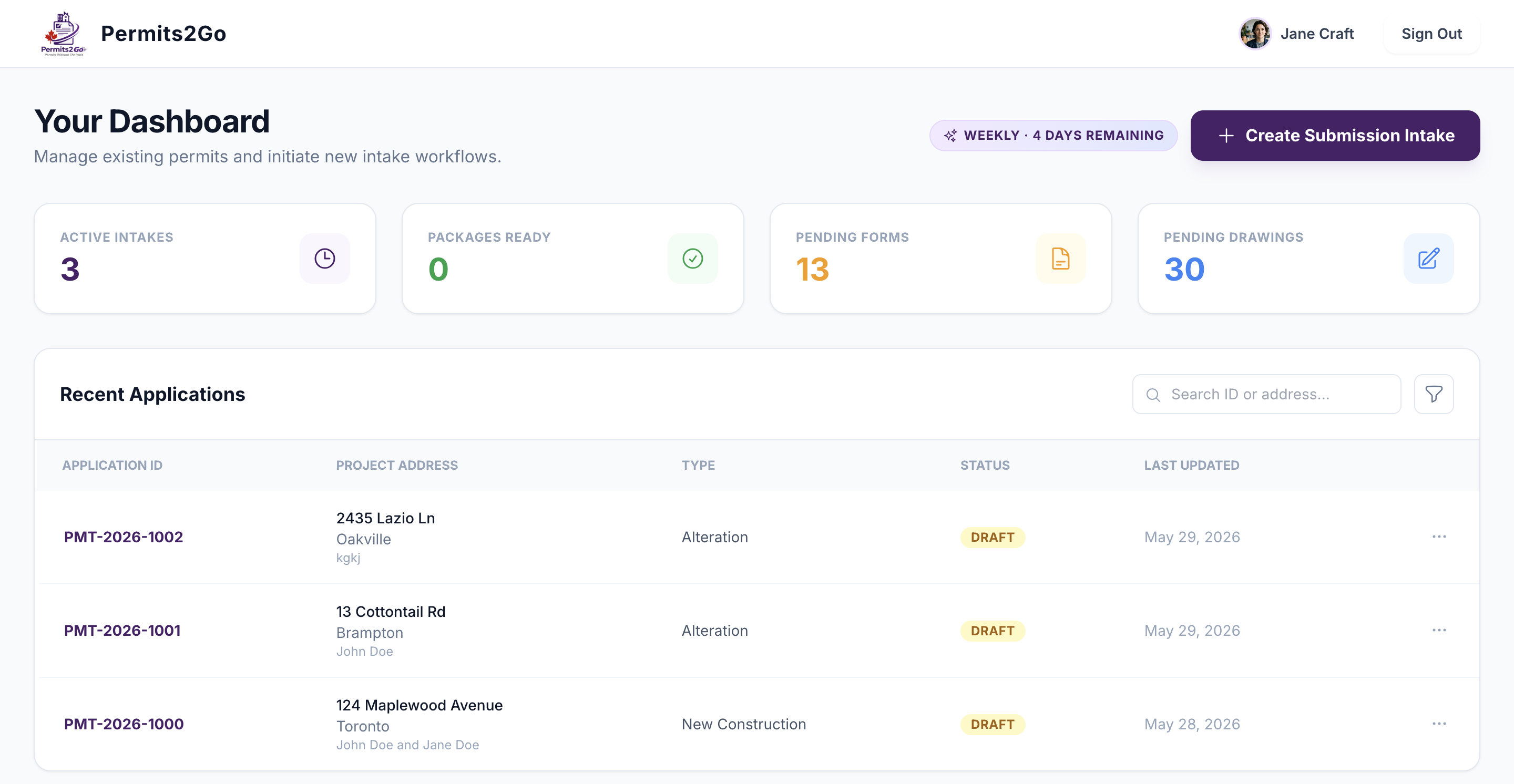
1. The dashboard shows the whole portfolio at a glance
Four tiles summarise your work: active intakes, packages ready to submit, pending forms and pending drawings. Click a tile to filter the table to those files. Each application row shows its status, the municipality, key dates and a fees indicator, and cells can be edited in place with a confirmation so a quick update does not require opening the file.
2. Status means something specific
Applications move through a fixed set of statuses: Pre-Consultation, Draft, Processing, Submitted, Under Review, Comments Received, Approved and Issued, with On Hold and Rejected for the exceptions. Several dates take care of themselves: the actual submission date is set when a file becomes Submitted, the issuance date when it becomes Issued, and the days-in-review counter stops when a file is approved. The dashboard flags who the file is waiting on and whether a date has passed, so "waiting on the city" and "waiting on us" are never confused.
3. The tracking tab holds everything a follow-up needs
Per application: sub-status, the city's reference number, the assigned reviewers with name, department, phone and email, target and actual submission dates, the municipal deadline, the last follow-up date, missing documents, the municipal fee amount and whether it is paid, the invoicing stage (Not Invoiced, Deposit Paid, 50% on Submission, Final on Issuance, Fully Paid), priority and the next action. These are the same fields an automated reviewer call proposes updates to, so a phone call with the city keeps the tab current.
4. Automatic emails for status changes and deadlines
Choose which status changes should notify the client or owner, and an email goes out automatically when the application reaches that status, for example when it is submitted, when comments are received or when the permit is issued. Reminder emails can be scheduled for milestones and dates on the file: the target submission date, a municipal deadline, a follow-up that is due, a booked inspection, or a permit's commencement or expiry date. The client hears about progress without phoning, and the team hears about a deadline before it passes.
5. Notes that belong to the file
The Notes tab (covered in depth in the Notes guide) is a running record per application, grouped by day, with attachments, pinning for the notes that matter, search and filters, and full edit history so a changed note can be compared with or restored to an earlier version. Notes written by the platform, from reviewer calls, from the application inbox and from digests, appear alongside yours, clearly marked. Every note is Internal by default. Mark a note Client-visible and it is emailed to the owner; their reply comes back onto the file as a note, so the conversation with the client is on the same record as the conversation with the city.
6. Inspections in the same place
Once a permit is issued, the Inspections tab (see the Site Inspections guide) logs each site visit: the inspection type, its result (Not booked, Scheduled, Passed, Partial or Failed), the date and the city's arrival window, the inspector's contact details, a deficiency checklist the site team ticks off as items are corrected, photos and the inspector's field notice, and a suggested next step. Inspection emails from the city that reach the application's inbox, such as booking confirmations, results and deficiency notices, are filed here too, updating the open visit rather than duplicating it. From each inspection you can email the record to the trades who have to fix the deficiencies, phone the inspector, or add the visit to your calendar with one click.
What you stay in control of
- Which statuses trigger a client email, and which dates trigger reminders.
- Which notes the client can see; everything is internal unless you decide otherwise.
- Every field on the tracking tab; automatic dates can be corrected.
- Edit history on notes, so nothing written on the file is ever lost.
The workflow after
| Step | Before | With Dashboard & Notes |
|---|---|---|
| Portfolio view | A spreadsheet, current as of last Friday | Tiles and a table the file keeps current |
| Status | Free text | Fixed statuses with automatic dates and waiting-on flags |
| Client updates | Phone calls and reconstructed answers | Automatic status emails and client-visible notes |
| Deadlines | Remembered | Reminder emails before they pass |
| What the city and the client said | Email threads | Notes, call transcripts and inbox messages on the file |
| Fees and invoicing | In another system | Municipal fee and invoicing stage on the row |
This guide is where the others land. Intake creates the file, discovery and signatures fill it, review and submission move it, calls, comments and the inbox keep it honest, and the dashboard shows the result. As Shahi wrote, the goal is that "instead of applicants managing the process, the process manages itself." A dashboard that is right without anyone updating it is what that looks like day to day.
Frequently asked questions
Can my client see the application?
Your client sees what you choose to share. Notes are internal by default; mark a note Client-visible and it is emailed to the owner, and their reply is filed back onto the application. You can also configure status changes, such as Submitted, Comments Received or Issued, to send the client an automatic email.
Which dates can trigger reminder emails?
Milestones and dates on the file, including the target submission date, a municipal deadline, a follow-up that is due, a booked inspection, and a permit’s commencement or expiry date. You choose which reminders are sent.
Does the dashboard track fees and invoicing?
Yes. Each application records the municipal fee amount and whether it has been paid, plus the invoicing stage for your own billing: Not Invoiced, Deposit Paid, 50% on Submission, Final on Issuance or Fully Paid. The dashboard shows a fees indicator on every row.
This guide is general information, not legal or professional advice. Permit requirements, by-laws and fees change and vary by municipality — always confirm the current rules with your local building department before you design or build.
Industry figures cited above are from “Enough is Enough” by Arash Shahi, CEO of LandLogic, published in Residential Builder magazine.